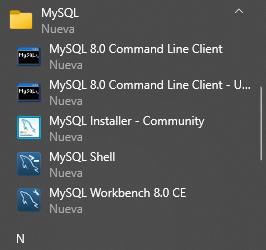
What’s good, wanna install MySQL? Gotcha, here am gonna break it down for you.
First, we are going to head to MySQL page to download the installer.
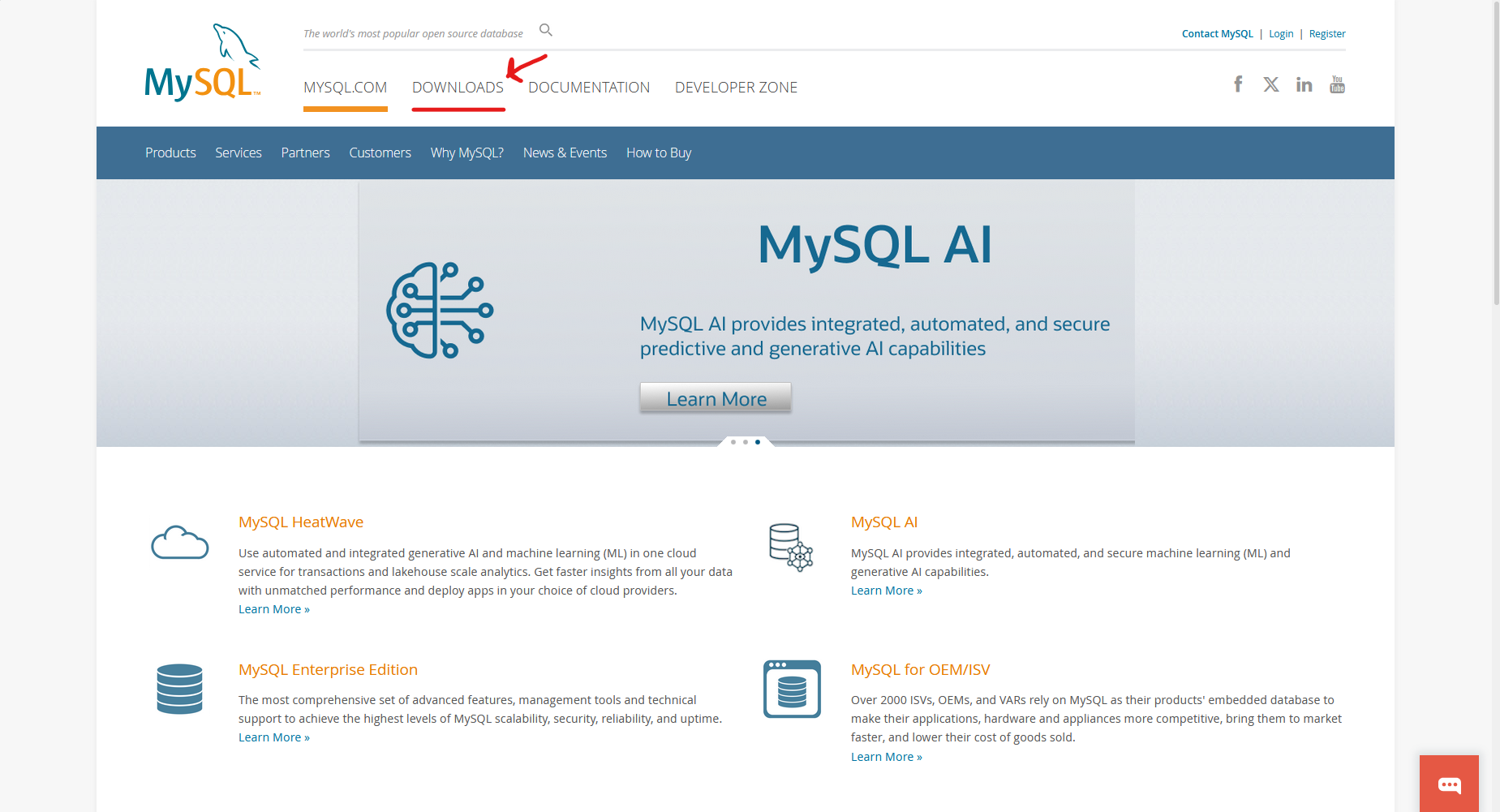
We head to MySQL page, here, and we go to the Download section
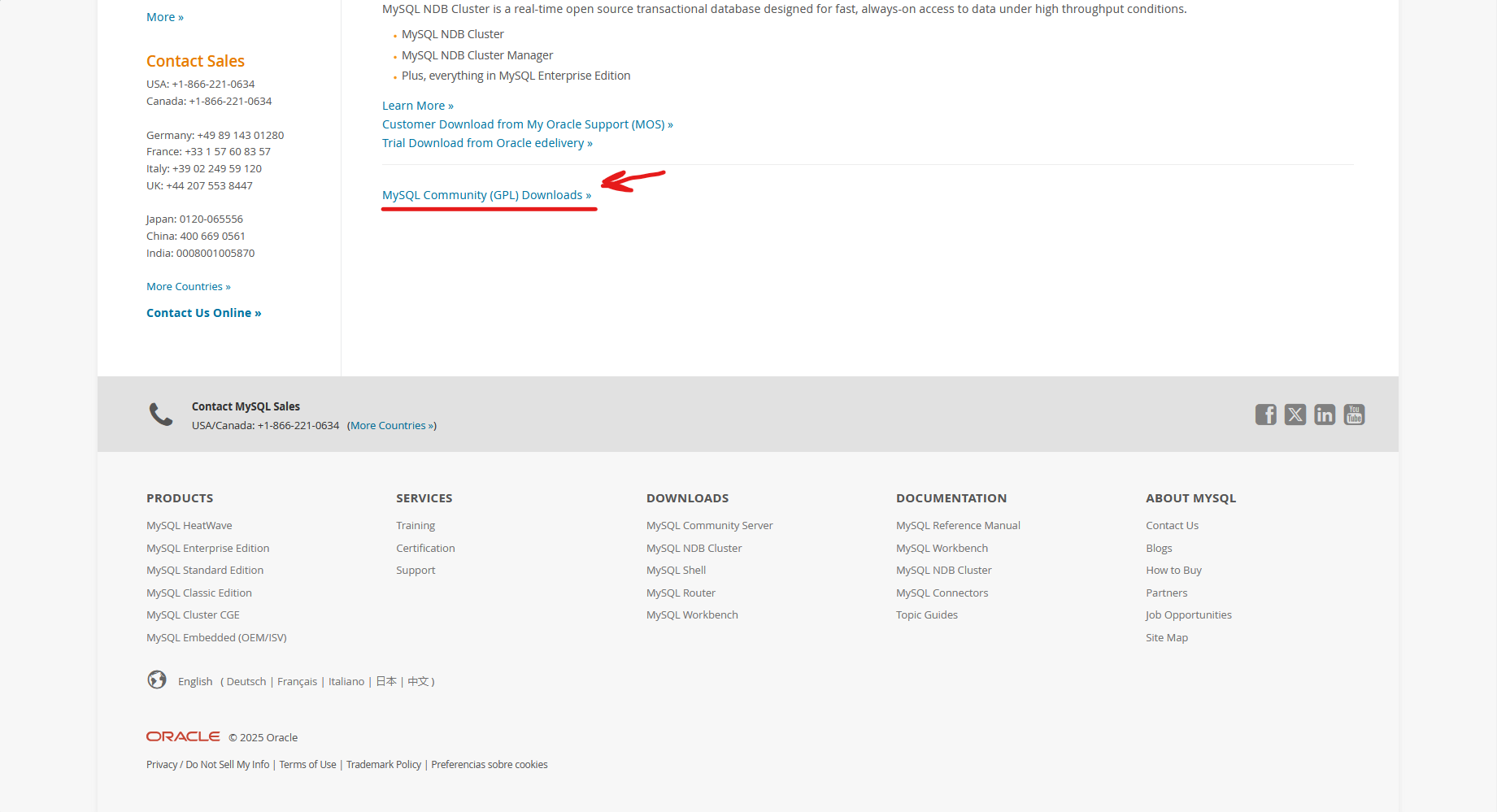
Then we scroll down all the way down searching for this link: MySQL Community (GPL) Downloads, click on it and it will take you to the downloads page.
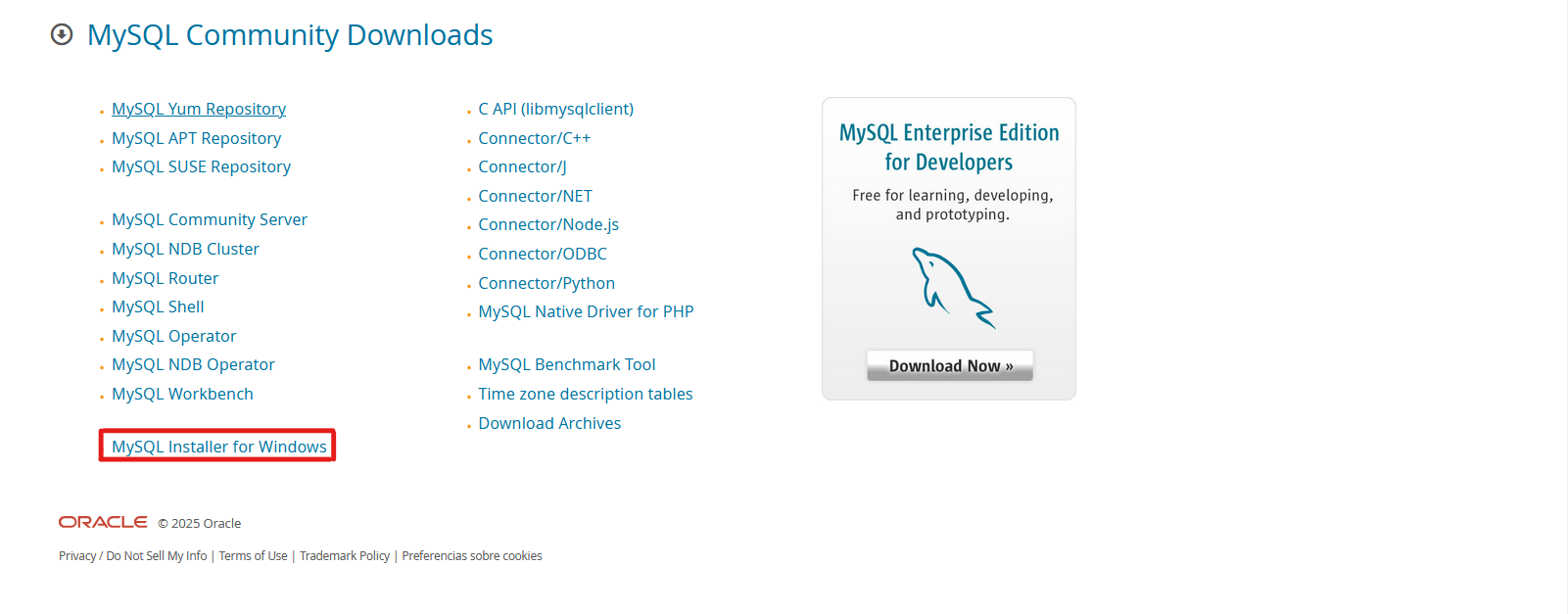
Then, in this page, click on MySQL installer for windows, assuming that you have a Windows OS, if you have Linux or MacOS, check these links1
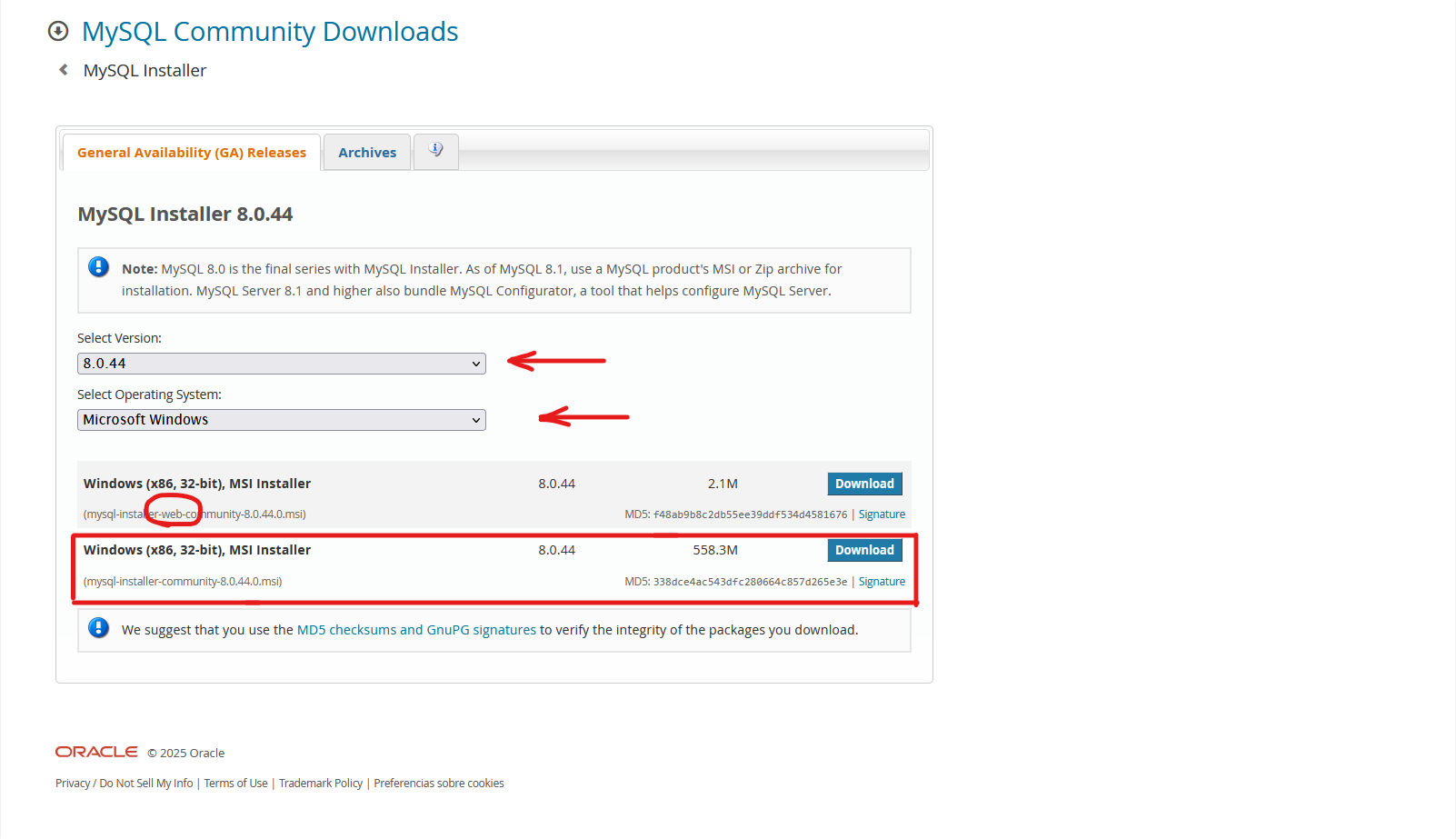
the link will bring us to this page, we select the latest version which comes pre-selected like the operating system, and then we download the installer.
Beware
There are 2 installers, one is for web application and the lightest one, and the other one is the desktop app and the biggest one. I’m going with the Desktop app.
When you click on the Download button, it wont start the download instantly, rather than that, it will take to another page, as you can see in the pic, and you need to click on No thanks, just start my download.

Congrats! The download is starting!
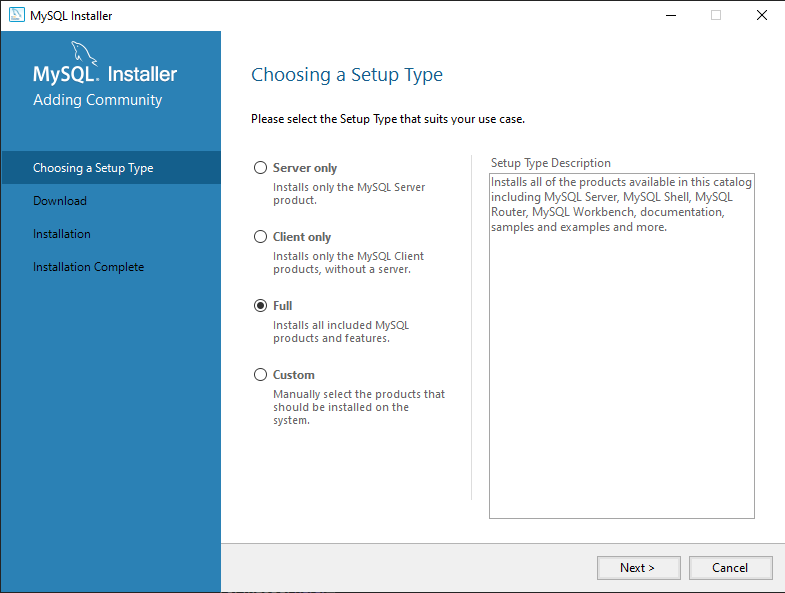
Once the download finishes and you open the installer, this window will show up. Here we choose the product that we want to install in our machines, im going with the Full one. All the pack.
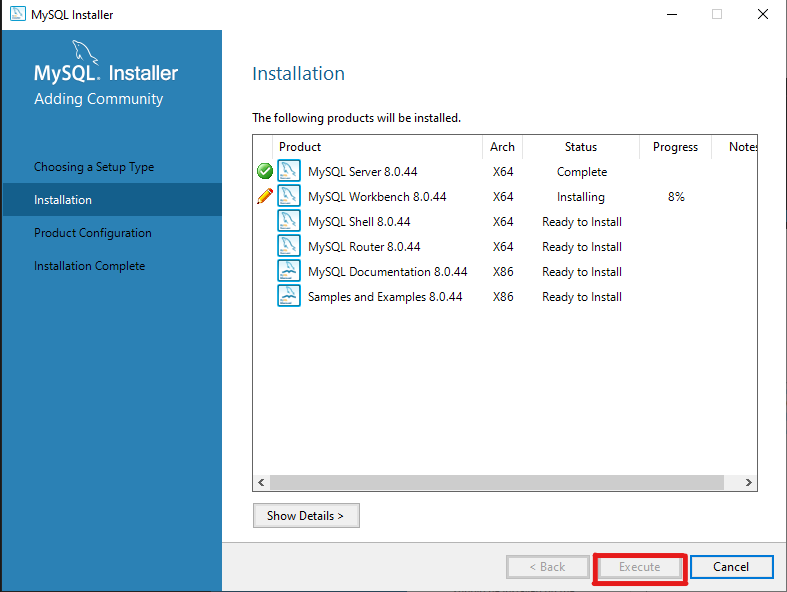
Next up, here click on Execute, that will start the installation of the products.
This will take long!
Be patient this step will depend on your internet speed and PC performance. So grab a coffee and watch the magic happen.
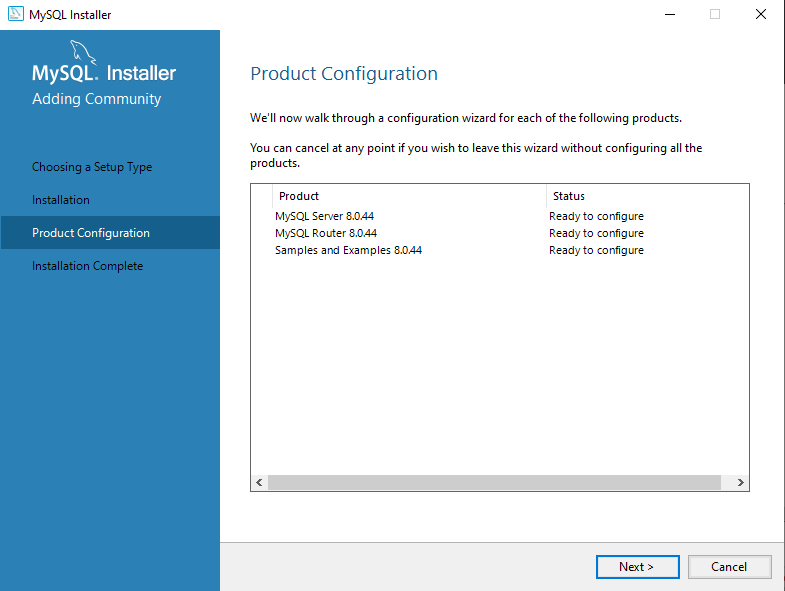
Next up, here we click Next ⇒, its just a quick review about how its going the installation.
Here we arent going to do much. Next ⇒
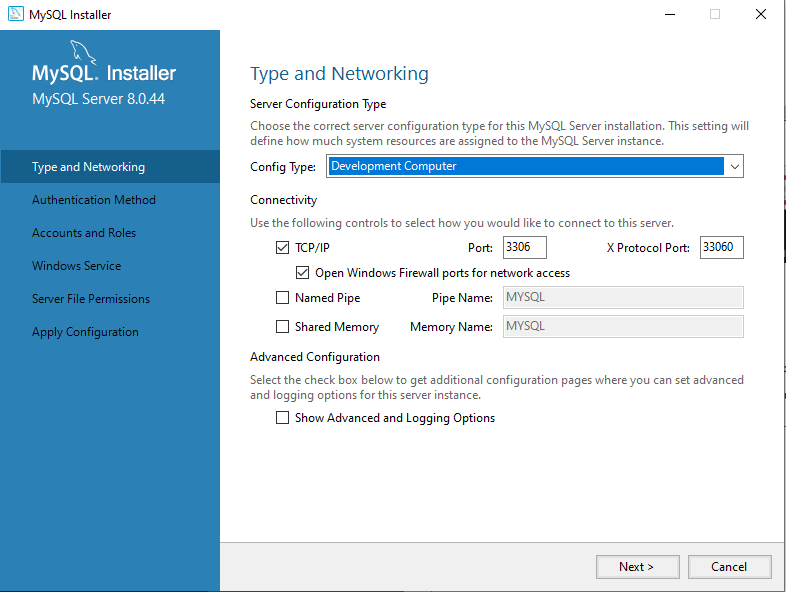
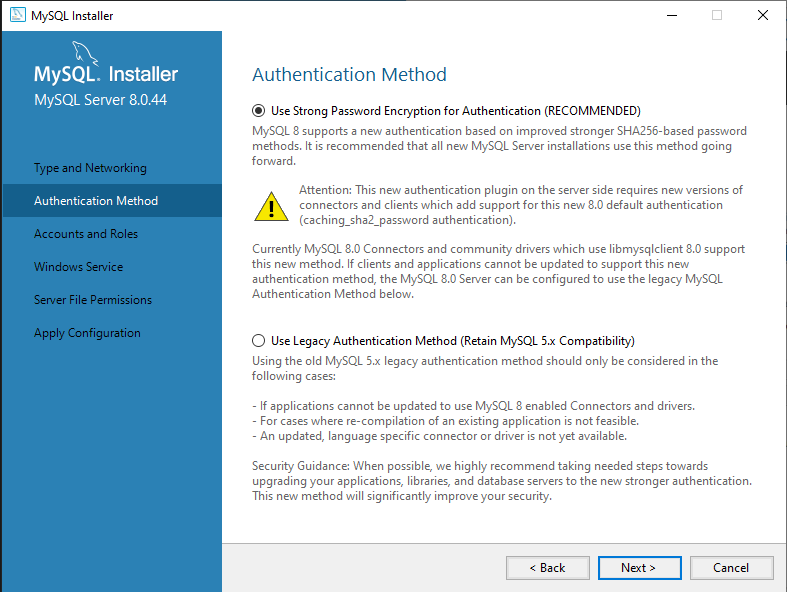
Same thing here, we leave the default marked option and the recommended one.
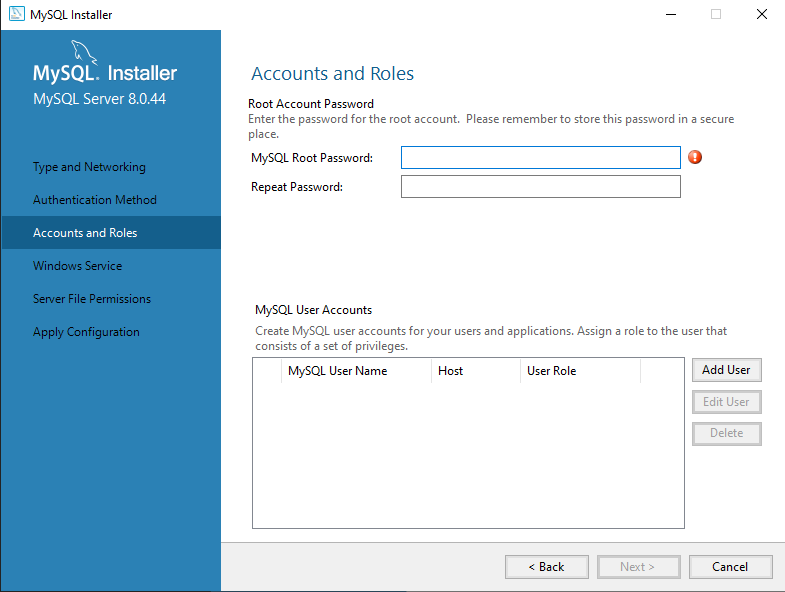
Here we must specify the username and password of the master owner of the DB.
Next up, here there isn’t much to do, so Next ⇒
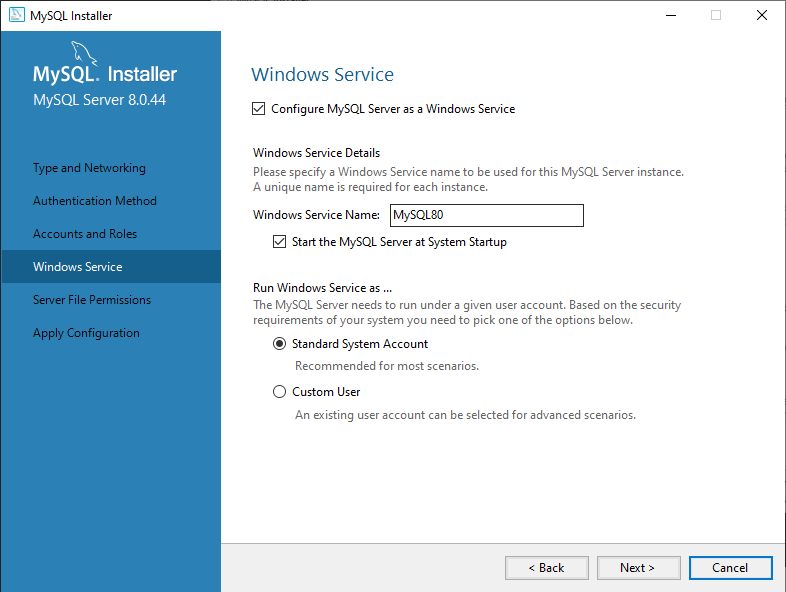
Same thing here, leave the default marked option and Next ⇒
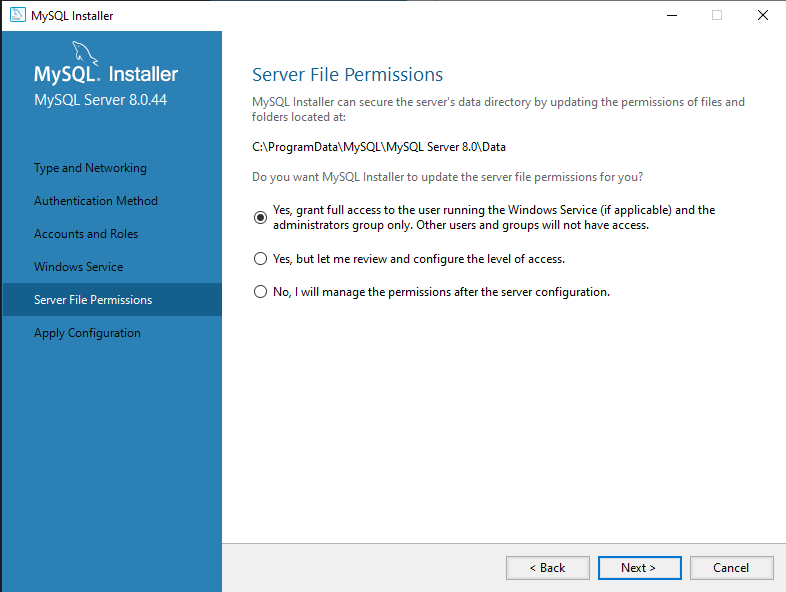
Here click on Execute and let the program configure all products, then Finish.
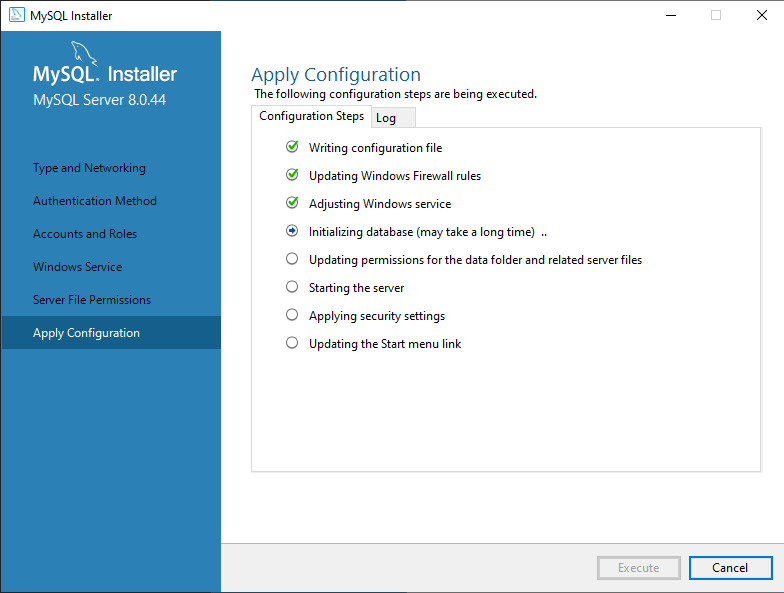
Here we ain’t doing a thing, so straight to Finish button.
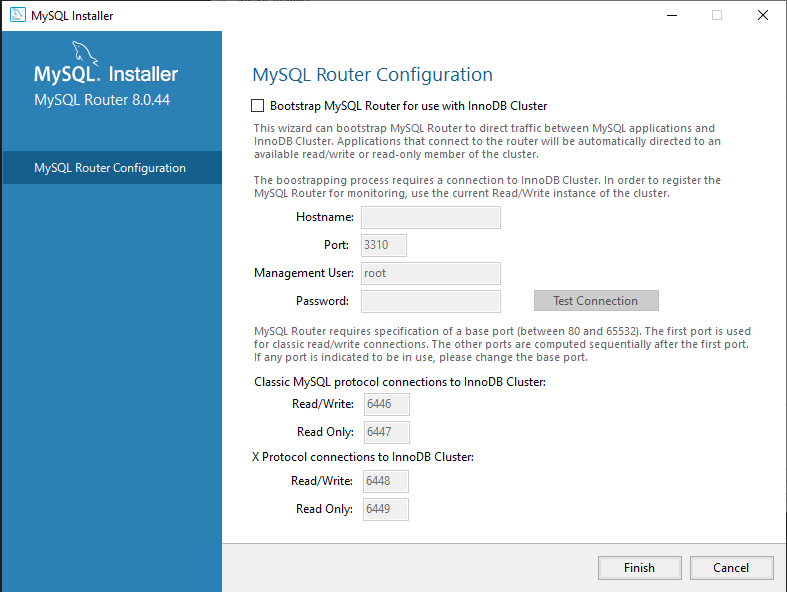
Here click on Next.
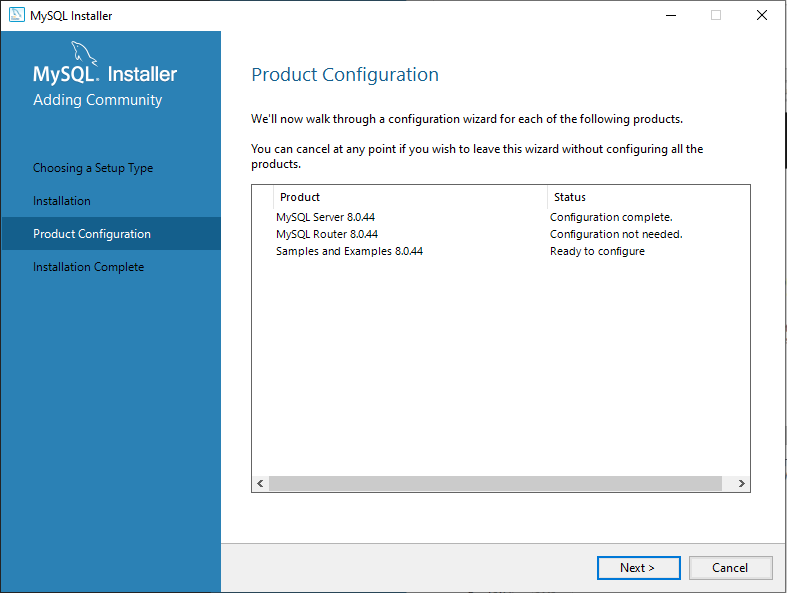
Now in this window, it will add demo data to MySQL database. We put the password previously configured then check.
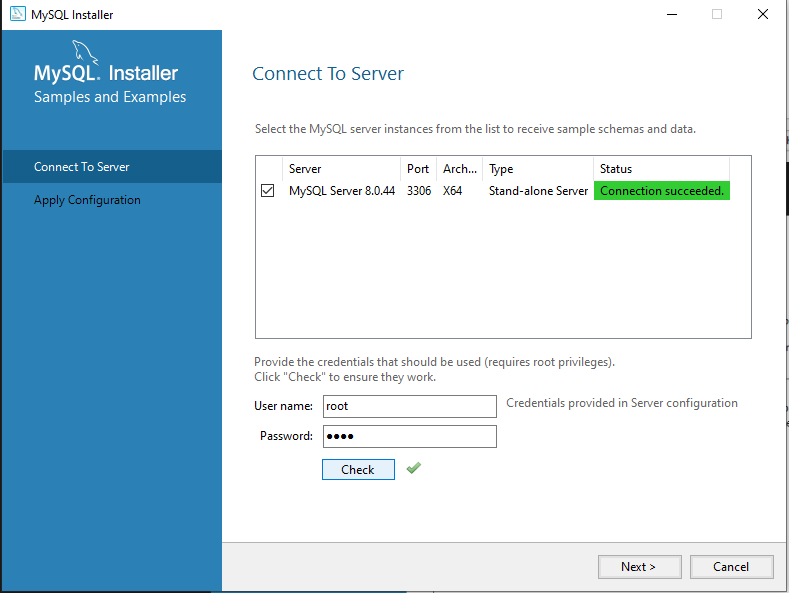
Next up, the program must aply configuration. Hit Execute then Finish.
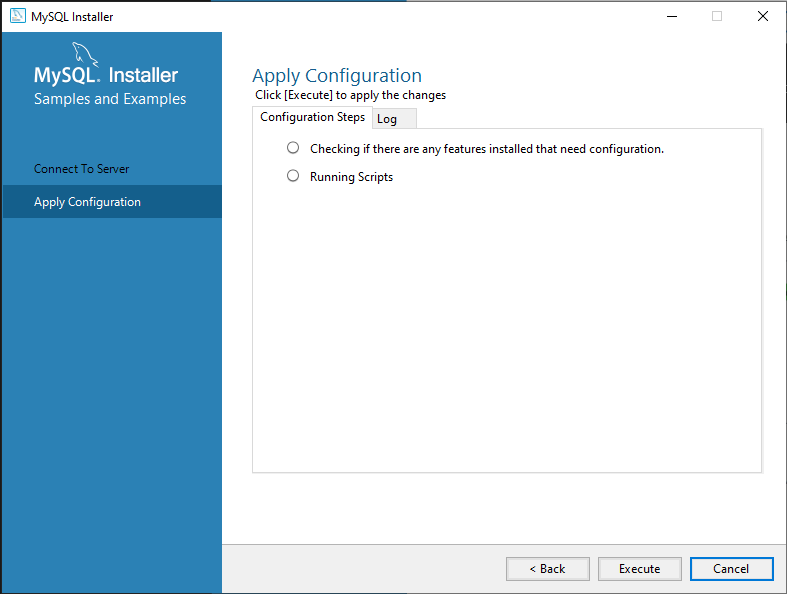
Again Next and Finish.
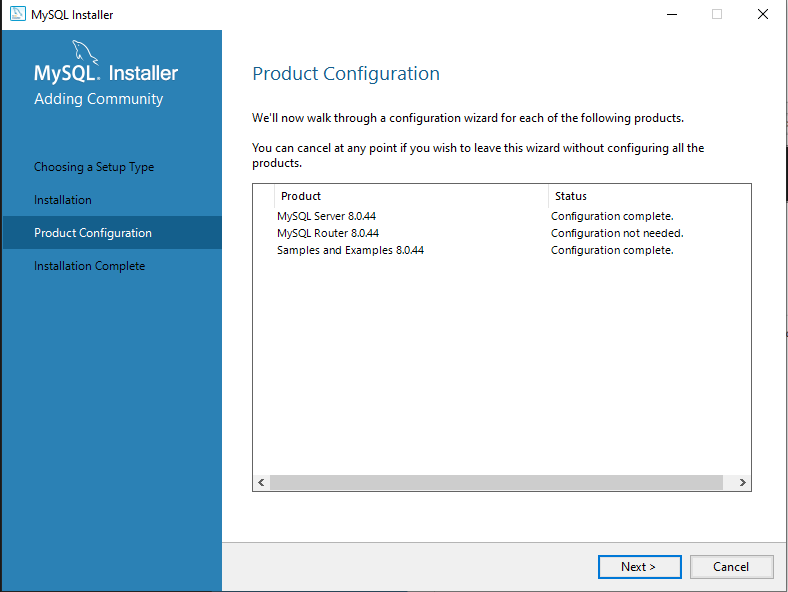
Yessir!!
Installation’s over!
Now if you search for MySQL in your windows apps, you will see MySQL folder, that’s great sign!